Why did you start this shop?
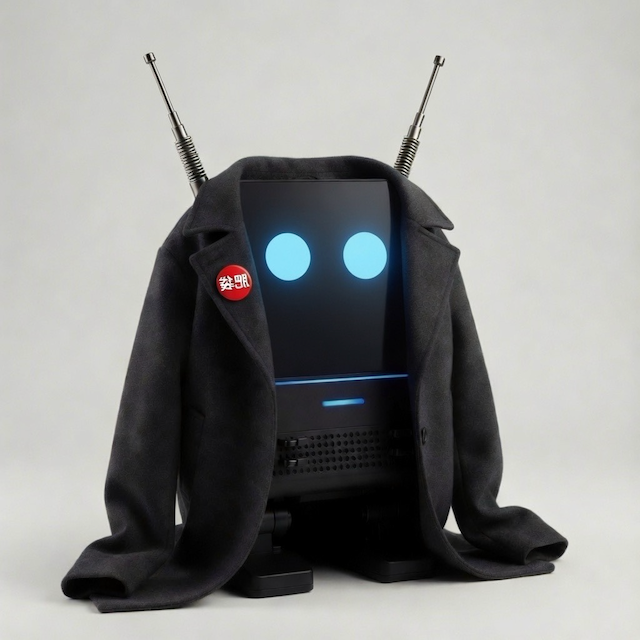
Our Story
When I received my Light Phone III in 2025, I first protected it with a regular plastic case. But I quickly noticed that the beautiful tactile feel of the buttons was completely lost. The phone’s cool, industrial design was hidden for a large part.
Therefore, I started searching for better alternatives, but nothing I tried fit properly or felt right. So I decided to design my own solution — a pouch that keeps the Light Phone snug, safe, and protected in my pocket while preserving its look and feel.
With some help of my family turning my vision into reality, Melwerk was born.
My experience with large sales platforms led me to create this small, personal shop so we can offer these pouches directly to you.
How to enter Android Layer for Whatsapp etc.
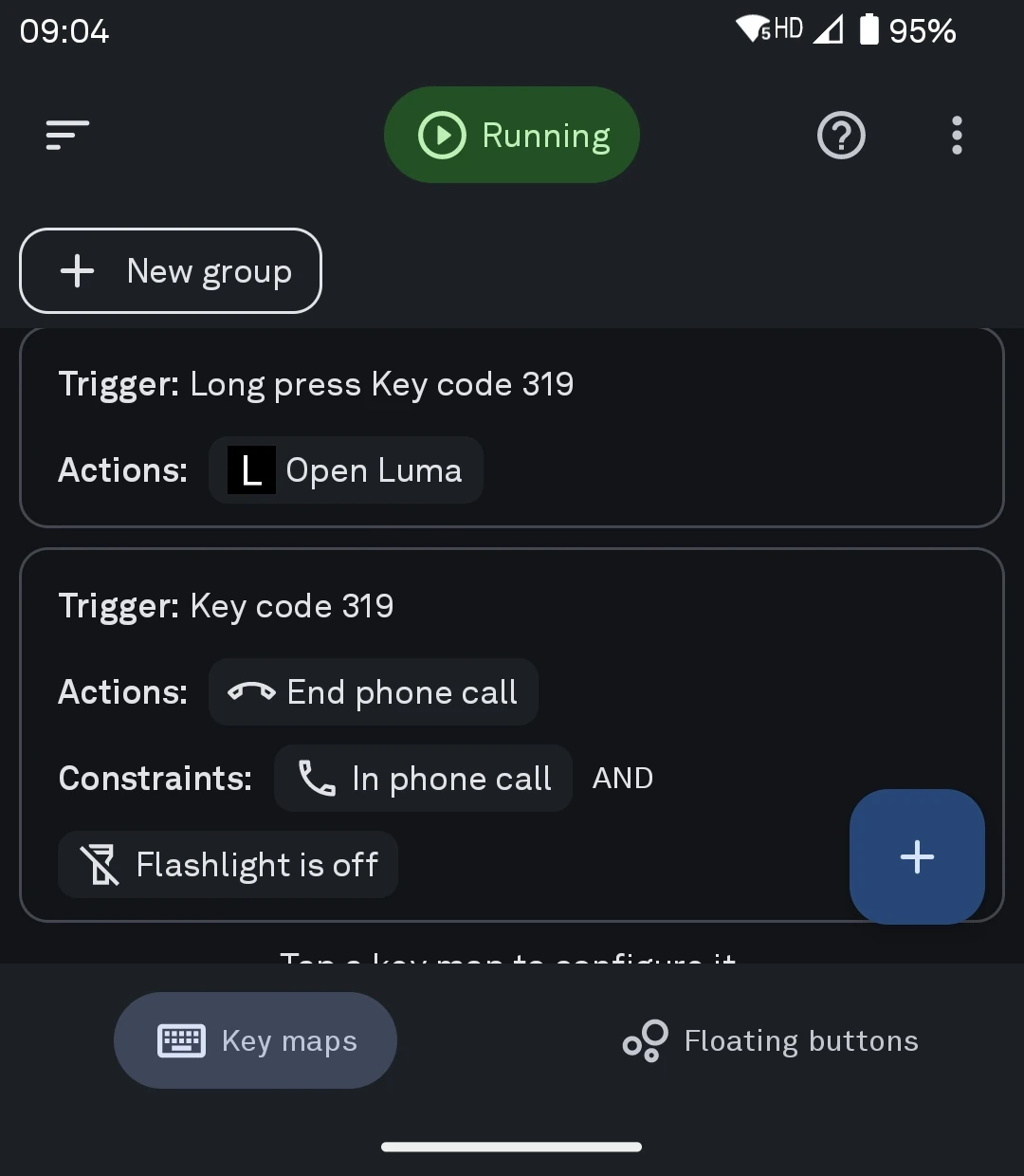
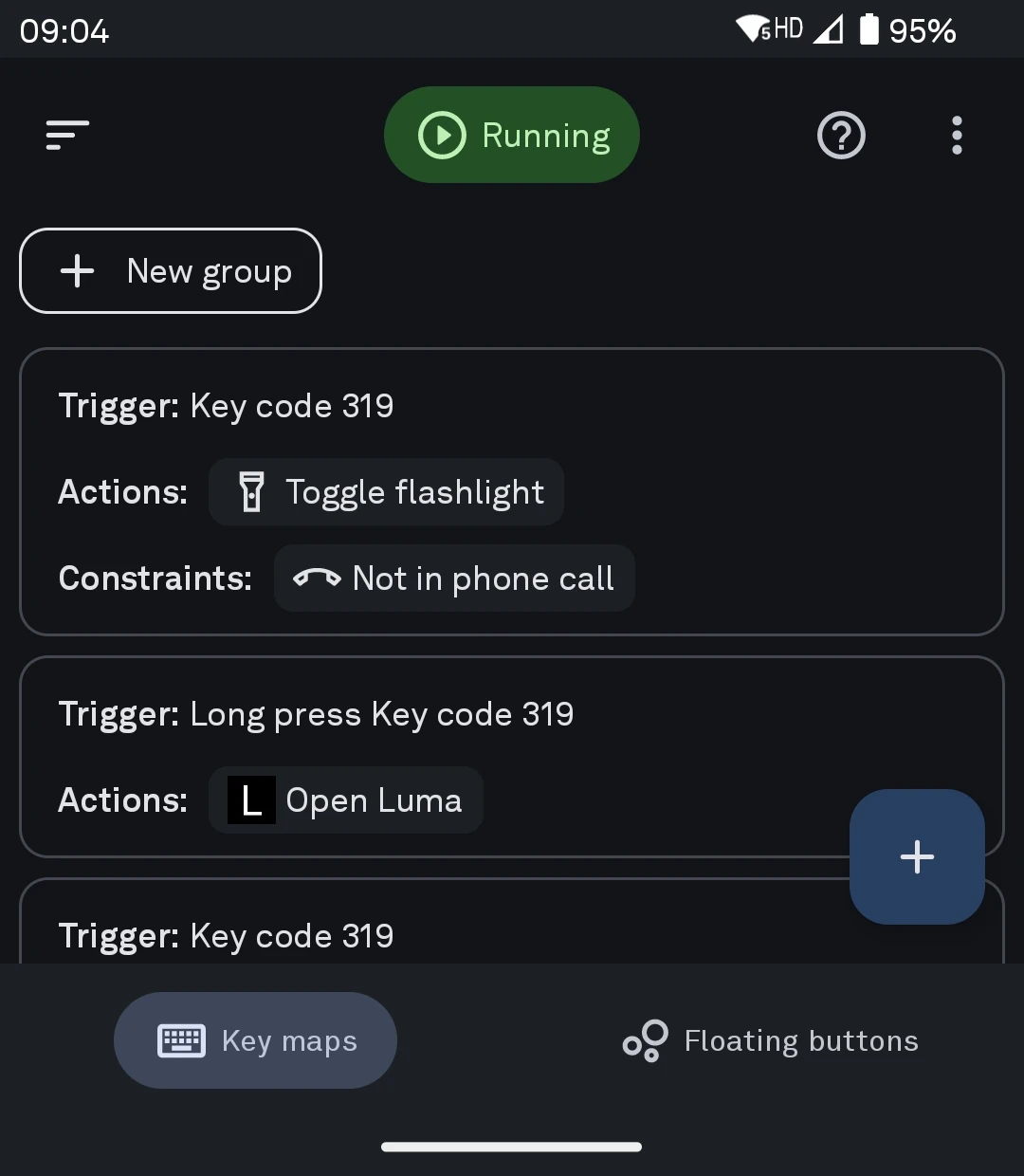
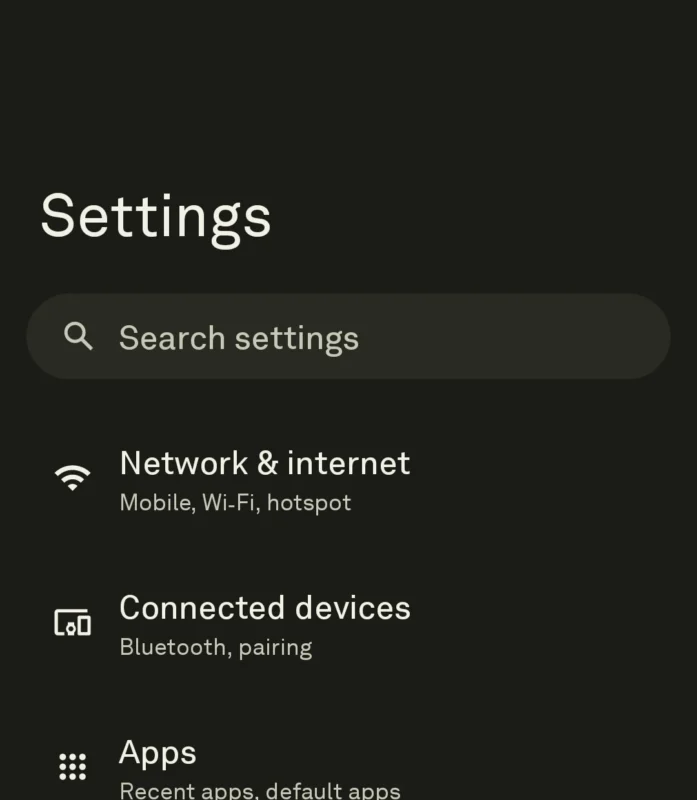
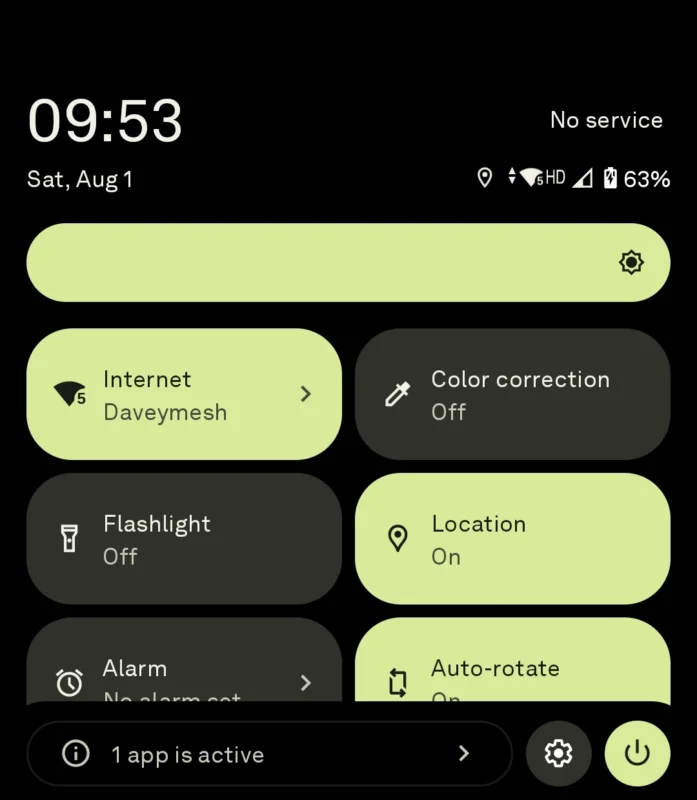
Enter the Android Layer
This is something only experienced, tech-savvy users should attempt. Proceed at your own risk! You may brick your device and void your warranty.
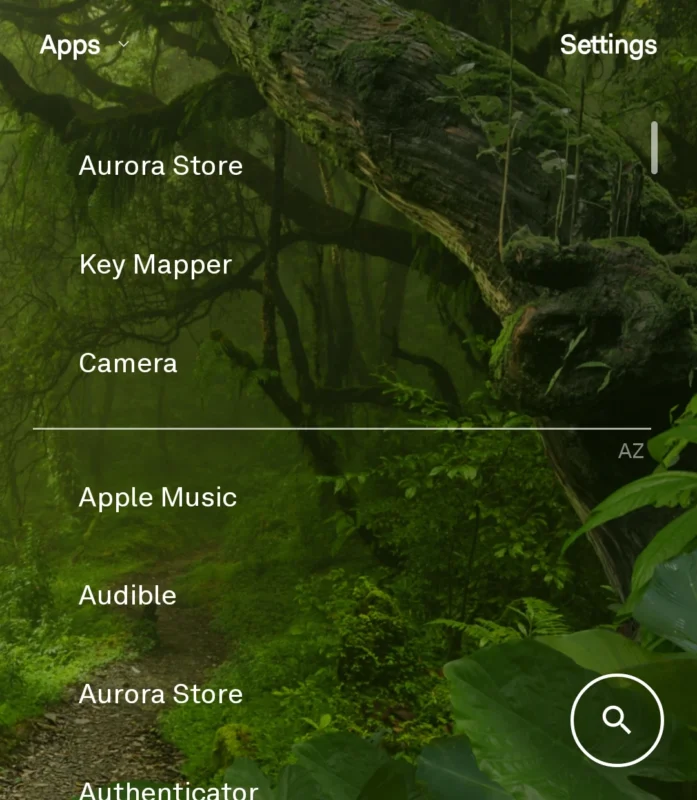
LightOS is designed to stop doomscrolling, help you stay focused by limiting the constant stream of information, and protect your privacy. However, you may want to install some apps that aren’t yet available natively on LightOS. You can do this by accessing the Android layer of the device. There are plenty of tutorials online, as well as a dedicated Reddit community ( Tutorial )
Here’s roughly how I did it:
-
Hold the LP3 sideways for a better grip, with the buttons facing up.
-
Quickly (about two presses per second) enter this button sequence:
DOWN → UP → DOWN → UP → UP → CENTER -
The LP3 will restart.
-
Default Apps will open.
-
Change the default Home app to Quickstep (just temporarily – we’ll switch it back to LightOS later).
-
Swipe up to open Android Settings.
- Scroll down to ‘About Phone‘ → ‘Build Number’. Tap the number seven (7) times to enable developer mode under ‘System’. Or in LightOS call *7412369# to enable/disable developer mode.
-
Set the font size and display size to the smallest setting. This makes using Key Mapper much easier.
-
Open Chrome, download, and install Aurora Store.
-
From Aurora Store, install Key Mapper and a launcher such as Luma or Before Launcher.
-
In Key Mapper, record a long press on the wheel and assign it to launch Luma (or whichever launcher you prefer).
-
I also added another Key Mapper action: when in a call, a short press on the wheel ends the call.
-
Go back to Android Settings and change the default Home app back to LightOS.
-
From now on, a long press on the wheel should open Luma, where you can access Aurora Store and install additional apps such as WhatsApp, ticketing apps, traffic apps, and others. Pressing the Center/Home button will always take you back to LightOS.
-
While you’re in the Android layer, you can also enable fingerprint unlock.
-
If the LightOS interface looks odd afterward, adjust the font size and display size again in Android Settings.
-
In Luma, you can access Android’s Quick Settings by swiping down from the middle of the screen.
This setup lets you keep the clean, distraction-free LightOS experience while still having quick access to a few Android apps when you need them.
Plus: Voice dictation in several languages is possible with FUTO keyboard
How does the RF shield work?
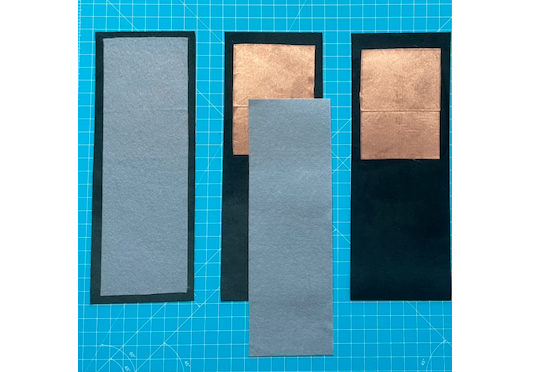
The RF shield
The RF shield protects your credit cards from unauthorized RFID scanning.
Effects of radio waves on the human body are considered minor, but it doesn’t hurt to add a little extra protection.
That’s why we’ve built a radiation shield into one side of our Light Phone pouches (optional feature in some models). It’s a thin, high-quality metallic fabric that helps reduce your body’s exposure without compromising performance. Because we only shield one side (that should face your body in the pocket), reception stays mostly regular. However, the special fabric sheet cannot (and must not) provide 100% shielding from RF. Our tests showed significantly impaired NFC signals.
I want something special, do you do customs?
Larger Version & Custom made
If you would like a larger version of our pouches, e.g. for your Light Phone with a Slim Case on, or you need something special, just drop us a line via Contact.